tl;dr
- Development Containers package your entire dev environment into a reproducible container, eliminating “works on my machine” problems
- My 2014 MacBook Air can’t run modern Ruby, but it doesn’t need to. The heavy lifting happens on a Raspberry Pi 5 in my home lab
- A simple
.devcontainerconfiguration transforms any compatible editor into a thin client connecting to consistent, containerised environments - This setup costs under £100 in hardware and works from anywhere with an internet connection
- The approach works for any technology stack, not just Jekyll. The principle is hardware independence through containerisation
The Problem: A Perfectly Good Laptop That Can’t Run Ruby
I recently found myself on holiday with only my 2014 MacBook Air. This machine is a decade old, Intel-based, and Apple stopped publishing software updates for it years ago. The battery still holds for hours, the keyboard works beautifully, and everything basically functions. There’s no compelling reason to replace it.
Except I couldn’t run my blog.
My blog uses Jekyll, which requires Ruby. Modern Ruby versions won’t install on this machine. The OS is too old, the dependencies won’t compile, and I spent a frustrating evening discovering that the rabbit hole of version incompatibilities goes deeper than my patience. I could have given up, or I could have asked a different question: what if the laptop doesn’t need to run Ruby at all?
Development Containers answered that question.
What Are Development Containers?
Development Containers are a standardised way to define development environments using container technology. Originally pioneered by Visual Studio Code, the Development Containers Specification has evolved into an open standard supported by VS Code, Zed, JetBrains IDEs, and other tools.
At its core, a Dev Container packages your development environment (runtime, tools, extensions, dependencies) into a container described by a .devcontainer/devcontainer.json file. This file lives in your repository, ensuring every machine that opens the project gets an identical environment.
The key insight: your laptop becomes a thin client. The actual compilation, dependency management, and heavy processing happen inside the container, which can run locally or on remote hardware. This principle aligns with Reproducible Builds — consistency in the development environment is a foundation for reliable software delivery.
My Setup: Offloading to a Raspberry Pi
Here’s the architecture that solved my problem:
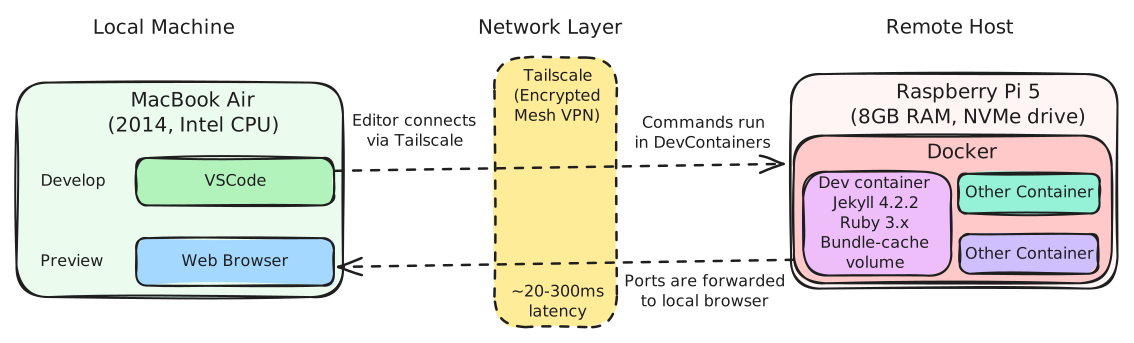
My 10-year-old MacBook Air connects via Tailscale (a mesh VPN I’ll cover in a future post) to a Raspberry Pi 5 running in my home lab. The Pi has 8GB of RAM and an NVMe drive for storage, which makes a noticeable difference for container performance compared to SD card setups. It runs Dockge, a clean web interface for managing Docker Compose stacks, and hosts several other containers for my home lab alongside development environments. When I open my blog repository in VS Code or Zed, the editor connects to the Dev Container running on the Pi.
The MacBook handles what it’s good at: displaying text, accepting keyboard input, and maintaining an SSH connection. The Pi handles what the MacBook can’t: running Ruby 3.x, compiling native extensions, and serving Jekyll’s development server.
Total hardware cost: Under £100 for a Raspberry Pi 5 with sufficient specs.
Result: My ancient laptop runs a modern development environment with zero local dependencies installed.
A Note on Architecture: ARM Matters
The Raspberry Pi 5 uses ARM architecture, not x86. This matters because some Docker images only provide x86 variants. Fortunately, the official Jekyll image (jekyll/jekyll) supports ARM, but you’ll need to verify ARM compatibility for any images you use.
If you encounter an image without ARM support, you have two options: find an alternative image, or build your own from an ARM-compatible base. The Microsoft Dev Containers base images increasingly support ARM, but always check before assuming.
The Jekyll Dev Container Configuration
Here’s the actual configuration I use for this blog:
.devcontainer/devcontainer.json
{
  "name": "Jekyll Blog",
  "dockerComposeFile": "docker-compose.yml",
  "service": "jekyll",
  "workspaceFolder": "/srv/jekyll",
  "customizations": {
    "vscode": {
      "extensions": [
        "yzhang.markdown-all-in-one",
        "davidanson.vscode-markdownlint",
        "redhat.vscode-yaml"
      ]
    }
  },
  "forwardPorts": [4000, 35729],
  "postCreateCommand": "bundle install"
}
.devcontainer/docker-compose.yml
services:
  jekyll:
    image: jekyll/jekyll:4.2.2
    volumes:
      - ..:/srv/jekyll:cached
      - bundle-cache:/usr/local/bundle
    command: sleep infinity
    environment:
      - JEKYLL_ENV=development
    ports:
      - "4000:4000"
      - "35729:35729"
    working_dir: /srv/jekyll
    deploy:
      resources:
        limits:
          memory: 1G

volumes:
  bundle-cache:
A few things to note:
The bundle-cache volume persists installed gems between container restarts. Without this, you’d run bundle install every time you open the project, which is painfully slow on a Raspberry Pi.
The deploy.resources.limits section caps memory usage at 1GB. The Pi 5 has 4GB or 8GB depending on model, and you don’t want a runaway process consuming everything. Adjust based on your hardware.
Port 35729 is for LiveReload. When you save a file, your browser refreshes automatically. This works even over the Tailscale connection, though with slightly more latency than local development.
The cached volume mount option improves performance by allowing the container’s view of files to lag slightly behind the host. For development workflows where you’re editing files and the container is reading them, this tradeoff makes sense.
Running the Development Server
Once inside the container, start Jekyll with:
bundle exec jekyll serve --host 0.0.0.0 --livereload
The --host 0.0.0.0 flag is essential. It binds to all interfaces, making the server accessible from your laptop via the forwarded port. Without it, Jekyll binds only to localhost inside the container, unreachable from outside.
Common Pitfalls and How to Avoid Them
Latency Is Real
Let’s be honest: developing over a network connection isn’t as snappy as local development. With my Tailscale setup, I experience 20-50ms latency from home and 150-300ms when travelling internationally.
For writing my blog posts, this is barely noticeable. For rapid iteration with frequent saves, you’ll feel it. The LiveReload delay becomes perceptible, and editor operations that involve round-trips to the container (like go-to-definition or search) feel sluggish.
Mitigation: Use a capable editor that handles latency gracefully. VS Code’s Remote Development extension is optimised for this. Accept that some workflows will feel different: batch your saves rather than saving on every keystroke.
Alternative: When latency becomes unbearable, you can run the same Dev Container locally on your MacBook Air. Yes, the old Intel Mac can’t run modern Ruby natively, but Docker Desktop for Mac still works. The container handles the Ruby version incompatibility. Performance will be slower than on the Pi (especially with macOS volume mounts), but it eliminates network latency entirely. This gives you flexibility: use the remote Pi when connectivity is good, switch to local when it isn’t. The same .devcontainer configuration works in both scenarios.
Volume Mount Performance Varies by Platform
If you run Dev Containers locally on macOS, you’ll discover that Docker’s volume mounts are notoriously slow. A bundle install that takes 30 seconds on Linux might take 3 minutes on macOS.
This matters less for my remote setup (the Pi runs Linux natively), but it’s a common complaint that drives people away from Dev Containers before they experience the benefits.
Mitigation: Use named volumes for dependency directories (like bundle-cache in my config). Consider the cached or delegated mount options. For local macOS development, Mutagen provides high-performance file synchronisation that dramatically improves volume mount speeds, though it adds complexity to your setup.
Container Resource Limits on Constrained Hardware
The Raspberry Pi 5 is capable, but it’s not a workstation. Running multiple Dev Containers simultaneously, or containers with heavy workloads, will exhaust resources quickly.
Mitigation: Set explicit memory limits in your Docker Compose files. Monitor resource usage through Dockge’s web interface. Close containers you’re not actively using. Consider a Pi with 8GB RAM if you frequently run multiple environments.
Forgetting to Forward Ports
Your development server runs inside the container. If you don’t forward its port, you can’t access it from your browser. In order to fix that, always specify forwardPorts in your devcontainer.json. For Jekyll, that’s 4000 (the server) and 35729 (LiveReload). VS Code will also auto-detect and offer to forward ports when processes bind to them.
SSH Key Access for Git Operations
Git operations inside the container need access to your SSH keys for authentication. Without configuration, git push will fail so don’t forget to mount your SSH directory read-only:
{
  "mounts": [
    "source=${localEnv:HOME}/.ssh,target=/root/.ssh,type=bind,readonly"
  ]
}
Or use VS Code’s SSH agent forwarding, which handles this automatically in most cases.
Try It Yourself
If you want to experiment with Dev Containers without my home lab setup, start locally:
- Install Docker Desktop on your machine
- Install VS Code with the “Dev Containers” extension
- Clone a repository with a
.devcontainerfolder (or add one to your own project) - Open in Container: VS Code will prompt you, or use the command palette: “Dev Containers: Reopen in Container”
You’ll experience the same consistency benefits without the remote complexity. Once you’re comfortable, you can explore remote hosts, SSH targets, or services like GitHub Codespaces.
For Jekyll specifically, you can use my configuration above as a starting point. Create the .devcontainer folder in your Jekyll project, add the two files, and open the project in VS Code.
If any of the setup above doesn’t work please let me know and I’ll try to fix any of the files above.
Conclusion
Development Containers solved a specific problem for me: I wanted to keep using a laptop that couldn’t run the required toolchain for my needs, even though it is a perfectly usable machine. The solution, offloading computation to a Raspberry Pi accessible via Tailscale, gave me something better than I expected: a development environment that works identically whether I’m at home, in a coffee shop, or on holiday with my decade-old hardware.
The broader principle matters more than my specific setup. By containerising development environments and treating local machines as thin clients, you gain hardware independence. Your development capabilities are no longer constrained by what’s installed locally or what your OS supports.
My 2014 MacBook Air still works beautifully. It just doesn’t need to run Ruby anymore.
References
-
Microsoft - Development Containers Specification - The open standard defining Development Container configuration, maintained by Microsoft and the community.
-
Martin Fowler - Reproducible Builds - Foundational thinking on why environment consistency matters for software delivery.
-
Humble, Jez and Farley, David - Continuous Delivery: Reliable Software Releases through Build, Test, and Deployment Automation. Chapter 2 covers configuration management and environment consistency as prerequisites for reliable delivery.
-
Docker Inc. - Docker Compose File Deploy Reference - Resource limits and deployment configuration for Docker Compose services.
-
Tailscale Inc. - Tailscale Knowledge Base - Mesh VPN setup for secure access to home lab infrastructure.
-
Mutagen - Mutagen - High-Performance File Synchronisation - High-performance file synchronisation for development workflows, particularly useful for improving Docker volume mount performance on macOS.